Notes beside every task
A full multi-line editor in the details pane, with word jumps, paste and scrolling. Tasks with notes get a small ≡ mark in the list.
Side work / Day Planner
Day Planner is a terminal to-do list sorted by day. Whatever you didn’t finish waits under Yesterday instead of quietly scrolling away, and every task has room for notes right next to it.
Free. A single Go binary for macOS and Linux; your tasks live in one SQLite file.
01 / The idea
A flat list grows until the old items stop meaning anything. A daily note starts empty every morning and yesterday’s leftovers are gone. Day Planner keeps one list but files every task under the day it was added, so you can see at a glance what’s new, what slipped and what has been sitting there for two weeks.
02 / How a day works
There’s nothing to schedule or tag. The date you added a task is enough.
Press n and type. New tasks always land in Today. Hit tab to jot details: links, steps, who to ask. Notes save themselves a moment after you stop typing.
Press space to cross a task out. It stays in the list for the rest of the day, struck through, so you can see what you got done. The progress bar in the header keeps count.
At midnight, crossed-out tasks move to the Completed page and anything left open drops into Yesterday. On Mondays, Yesterday covers Friday to Sunday, so the weekend doesn’t push your Friday work out of sight.
Older open tasks collect under Old with the day they were added. Press t to pull one back into Today, x to delete it, or z to fold the section away for now.
03 / Features
Everything is one keypress away, and the mouse works too.
A full multi-line editor in the details pane, with word jumps, paste and scrolling. Tasks with notes get a small ≡ mark in the list.
Press c for the Completed page: every crossed-out task grouped by day, with when it was added and when you finished it. space restores one to Today.
Arrows or j/k, g/G to jump. Click to select, double-click for details, click the circle to cross out, scroll with the wheel. ? shows every key.
Open it in as many terminals as you like. Each one notices changes made elsewhere within a second and redraws, without losing what you’re typing.
Wide terminals show the list and details side by side. In a narrow split, details take over the screen when you open them, and p hides the pane altogether.
Everything is in ~/.day-planner.db, a plain SQLite database you can back up, sync or query. Set DAY_PLANNER_DB to keep it somewhere else.
04 / Screens
A Tokyo Night palette, sections that warm up as tasks age, and hints for the keys along the bottom.
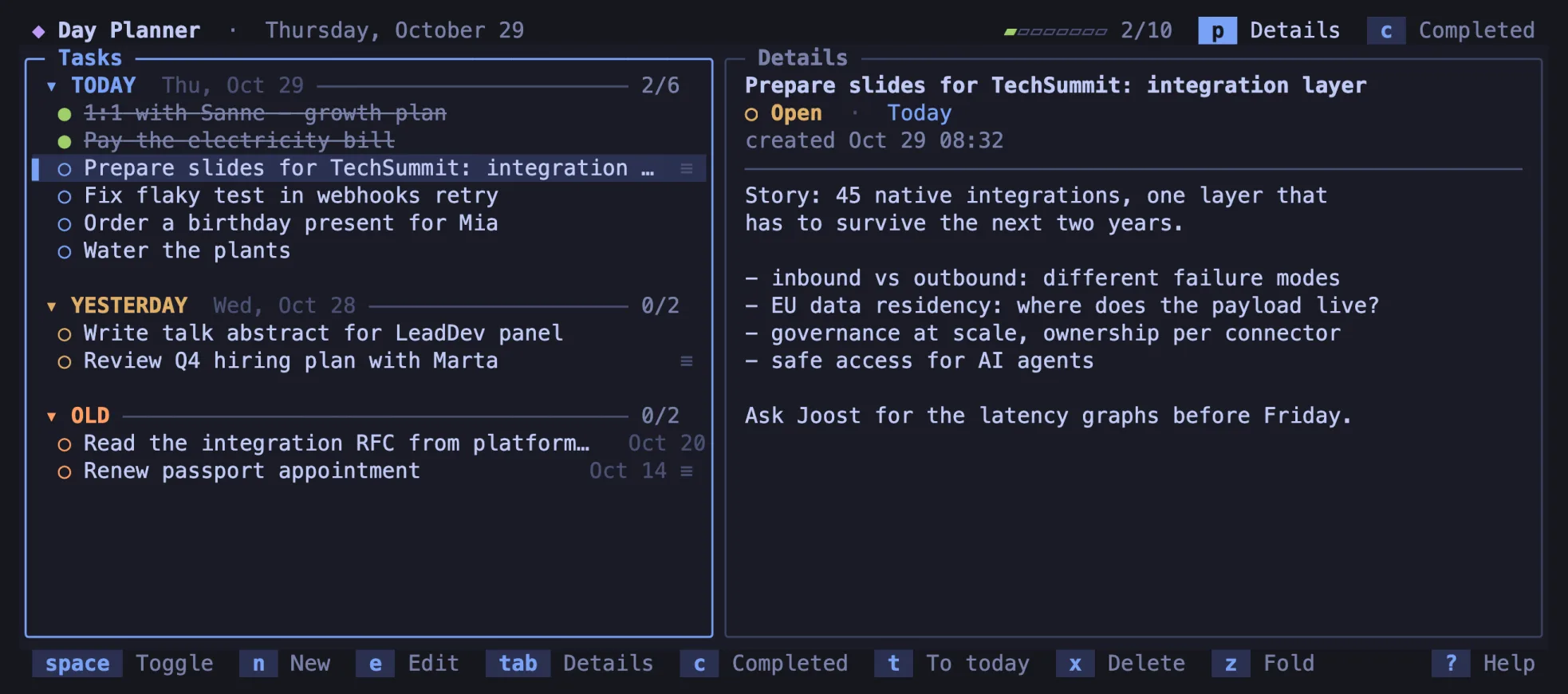
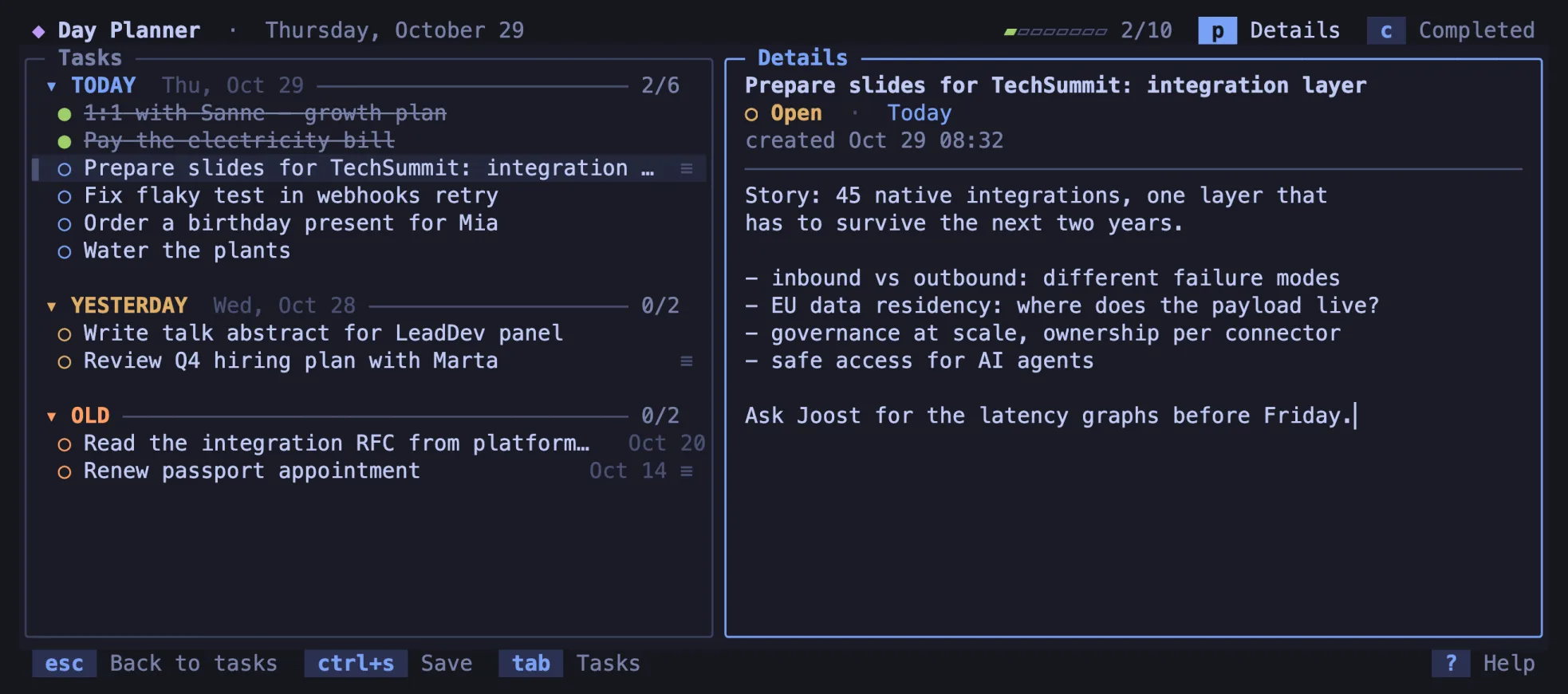
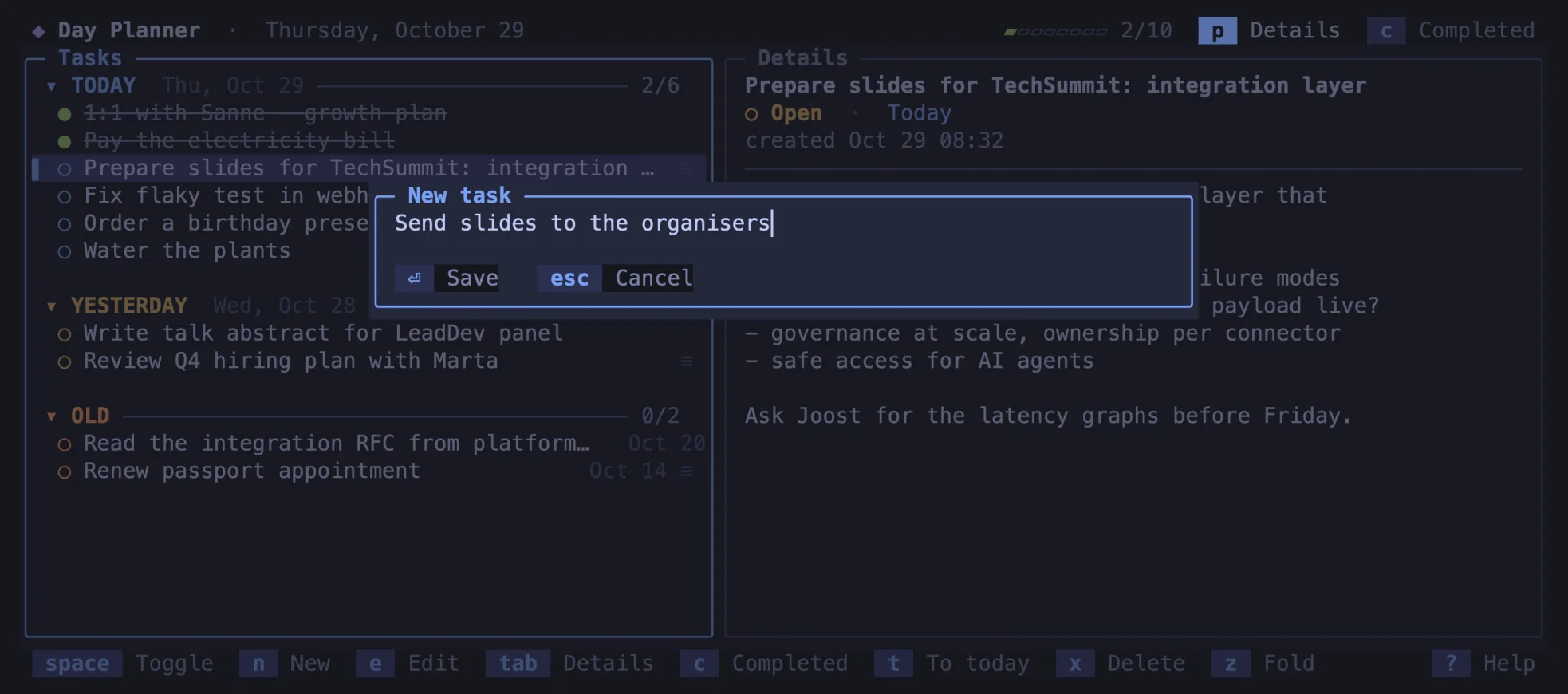
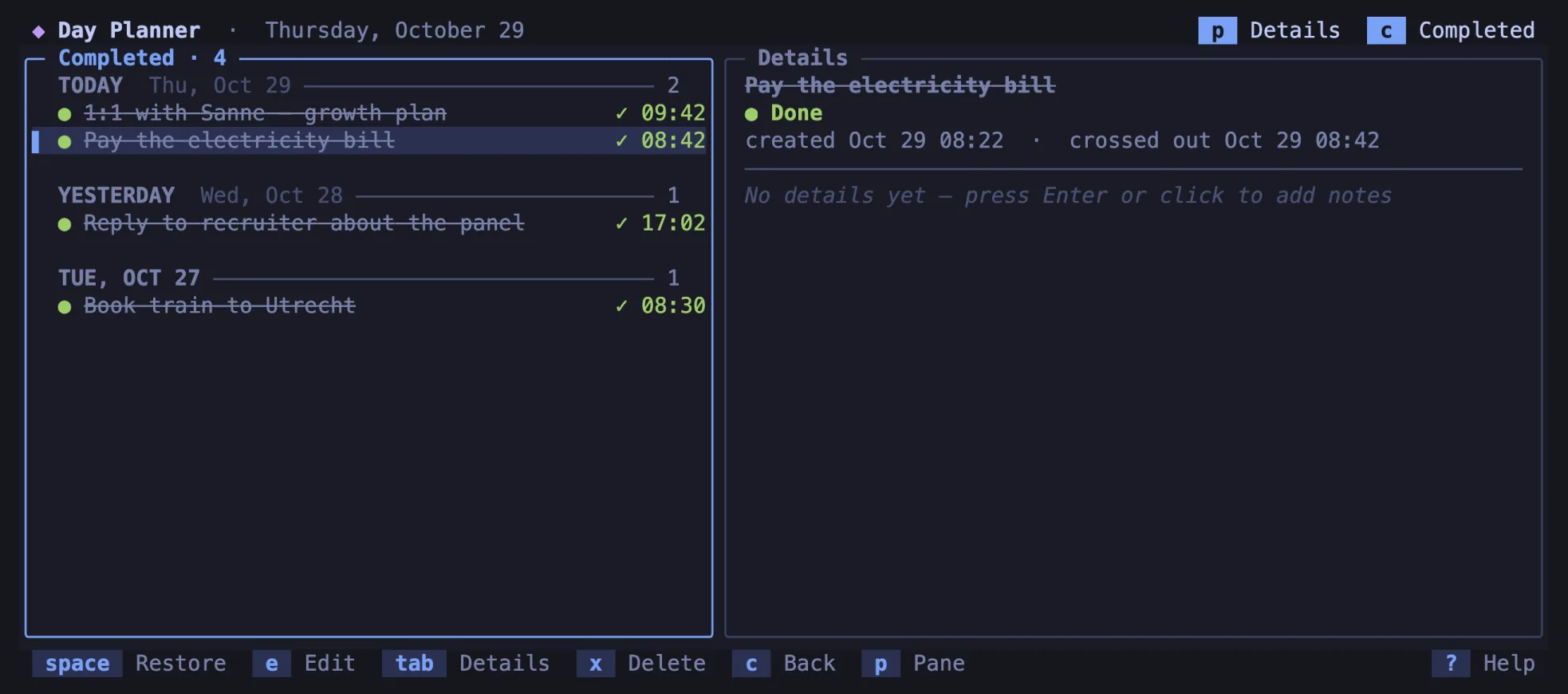
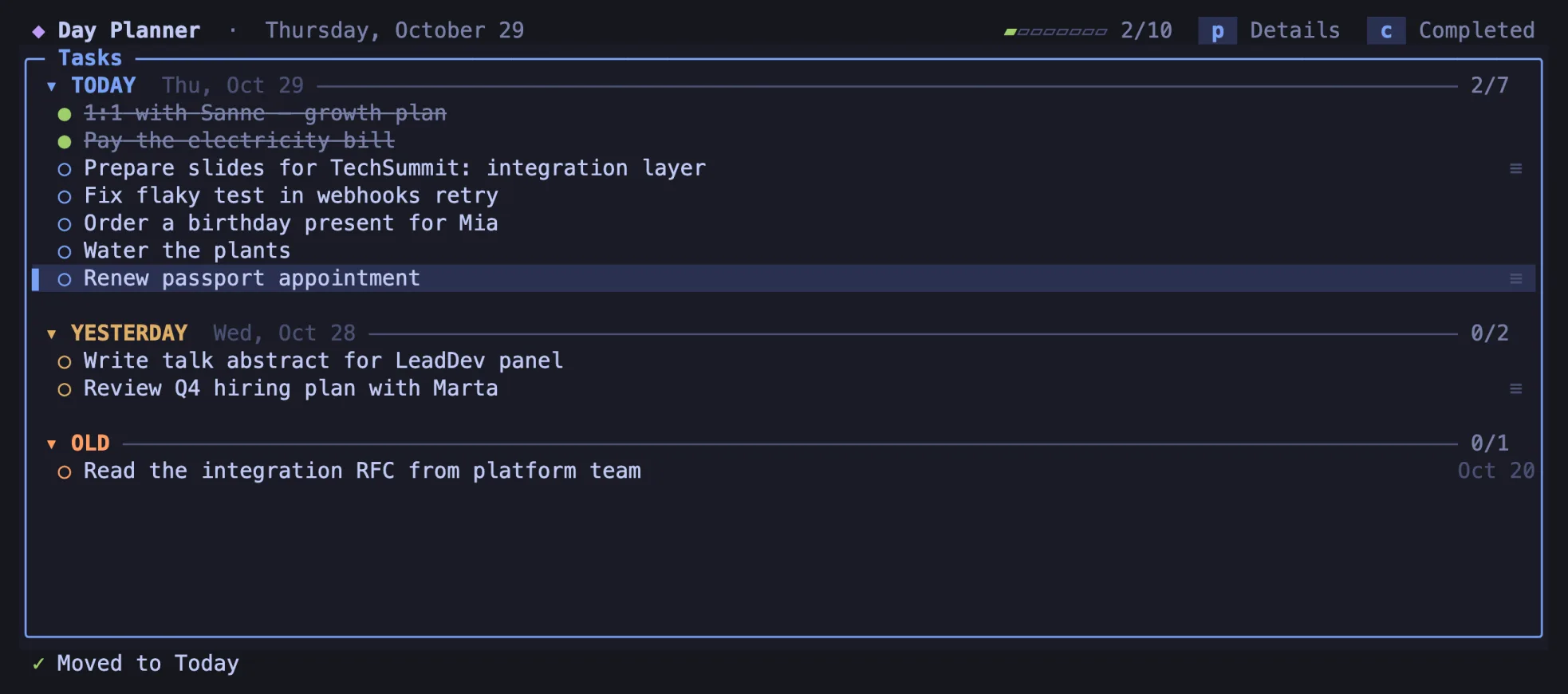
p. Here an old task was just pulled into Today.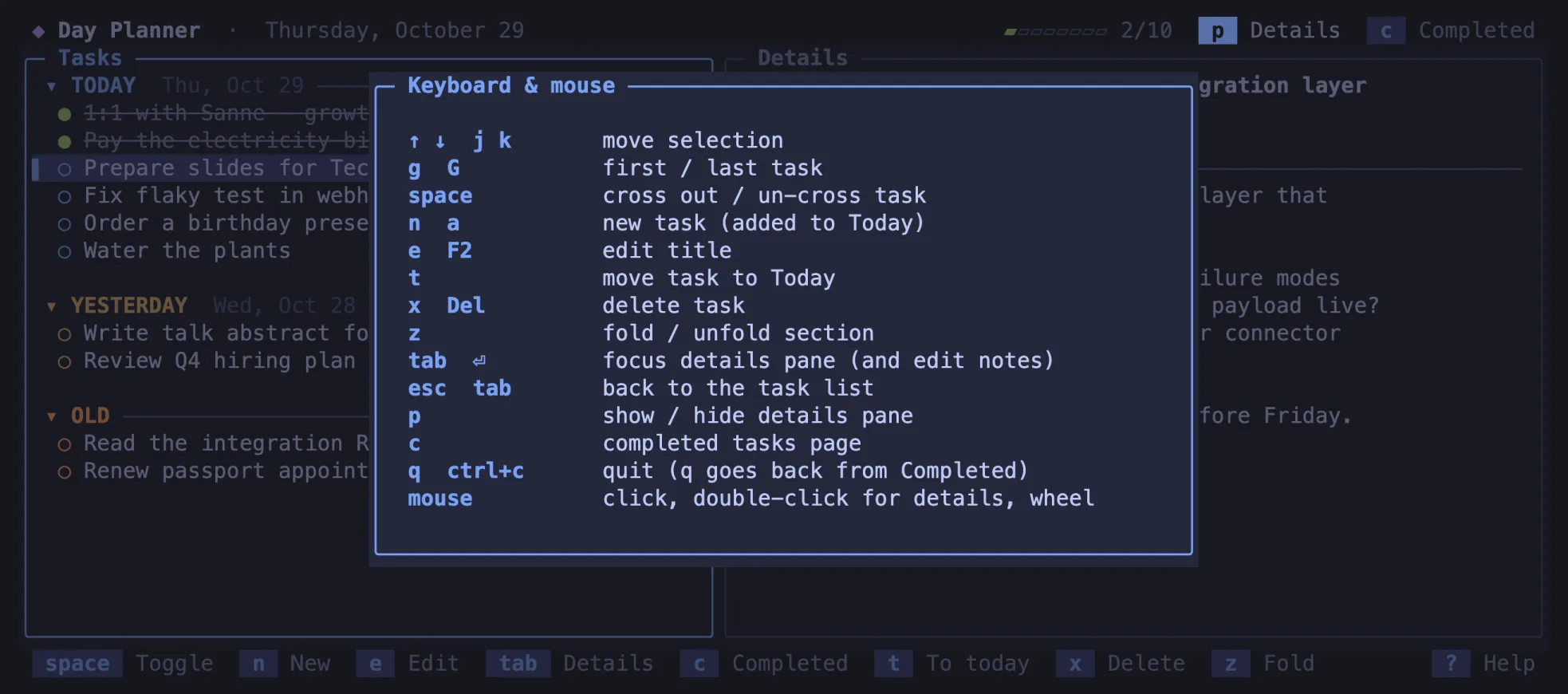
?.05 / Under the hood
Day Planner talks to the terminal directly and keeps its data in SQLite, so it starts instantly and builds into a single static binary.
modernc.org/sqlite in WAL mode: no C toolchain, no shared libraries, one file on disk.data_version, which changes only when another process commits. That’s how separate terminals stay in step without a server.06 / Get started
On an Apple Silicon Mac, the repository already includes a built day-planner binary. Everywhere else, build it with Go.
# needs Go 1.26 or newer
git clone https://github.com/tryshchenko/tui-day-planner.git
cd tui-day-planner
go build -o day-planner .
./day-planner

# optional: keep the database elsewhere
DAY_PLANNER_DB=~/Documents/tasks.db ./day-planner
One list, sorted by day, a keypress away in your terminal.
Day Planner on GitHub